

Text-to-Buy Campaign Setup Guide
Last updated February 14, 2026
Text-to-Buy Campaign Set Up Guide
1. Log in to Your Account
- Access the platform and log in with your credentials.
2. Navigate to the Send Section
- Select "Text-to-Buy".
3. Choose Campaign Type
- Select either a Manual or Automatic campaign.
4. Create Your Campaign
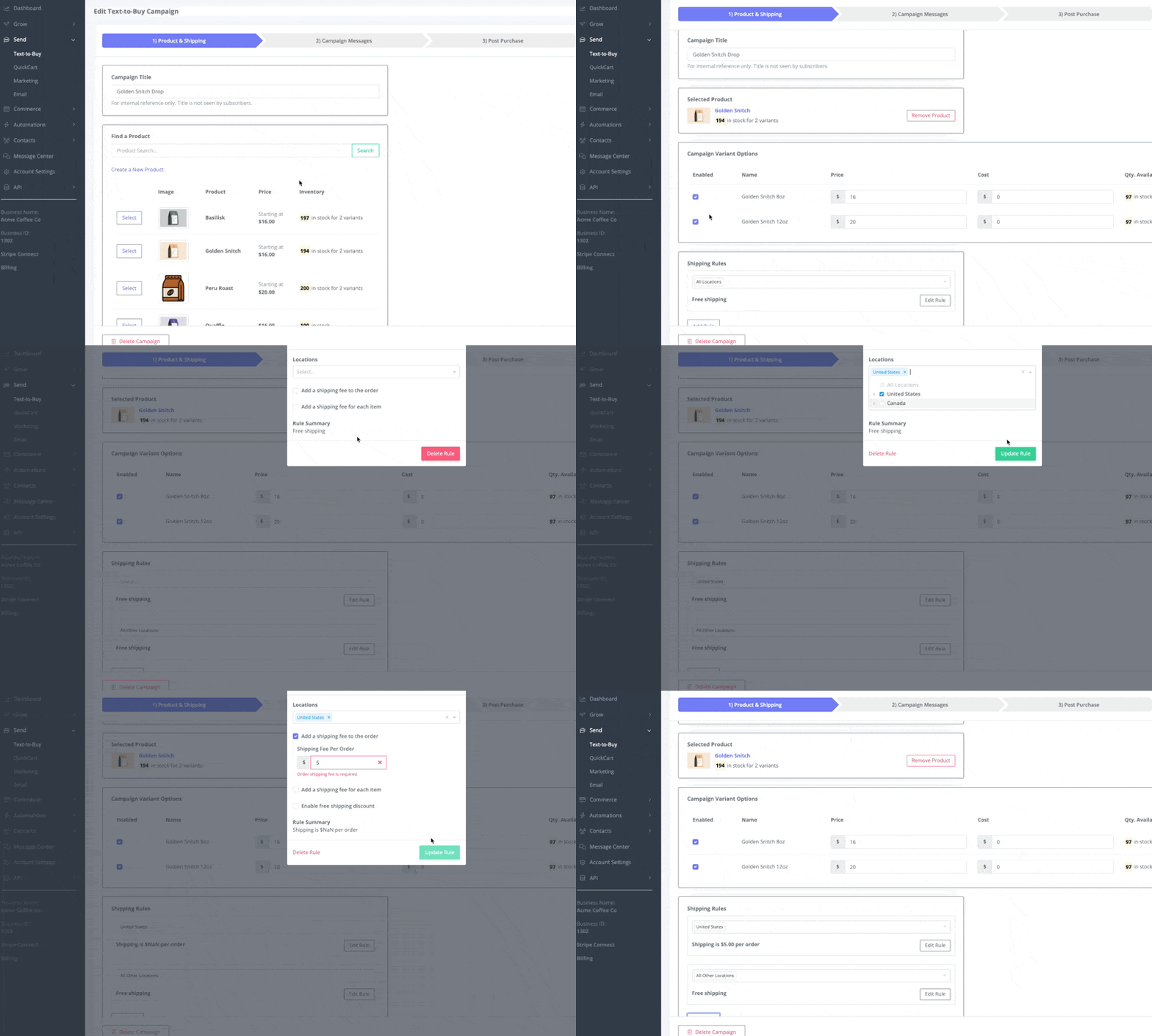
- Enter the campaign title.
- Select the products, set prices, and determine shipping fees.
5. Craft Campaign Messages
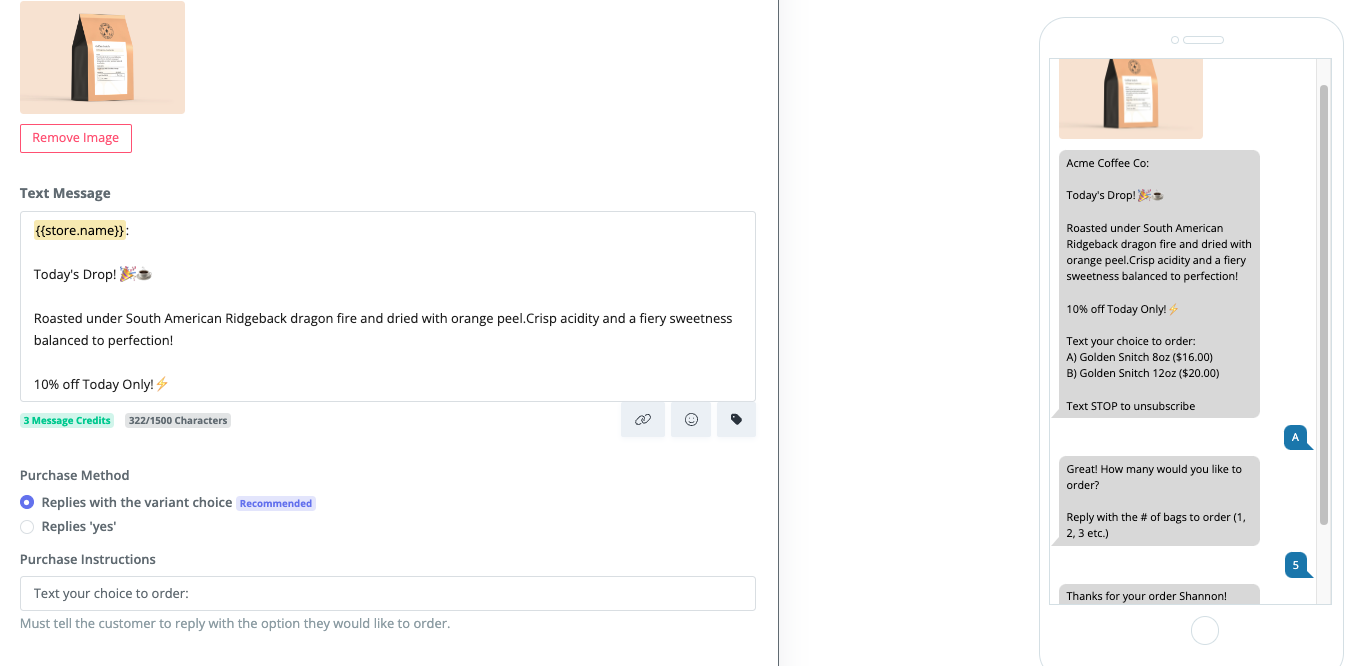
- Create engaging and personalized messages.
- Include personalized tags and emojis.
- Review and refine the product descriptions.
- Simplify the purchase process:
- Allow customers to purchase by replying with a quantity or a simple "Yes".
- Ensure purchase options are accurate.
6. Determine other purchase options
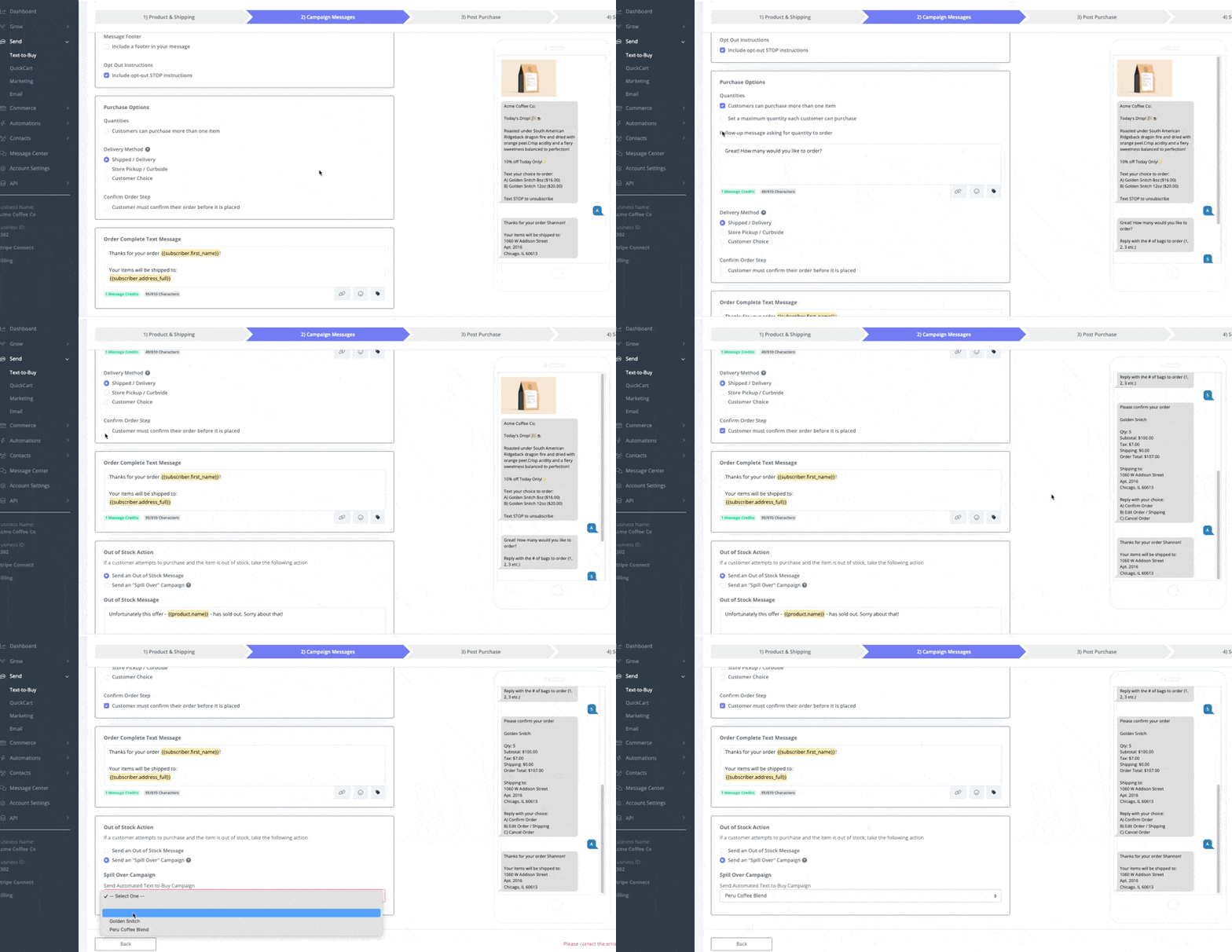
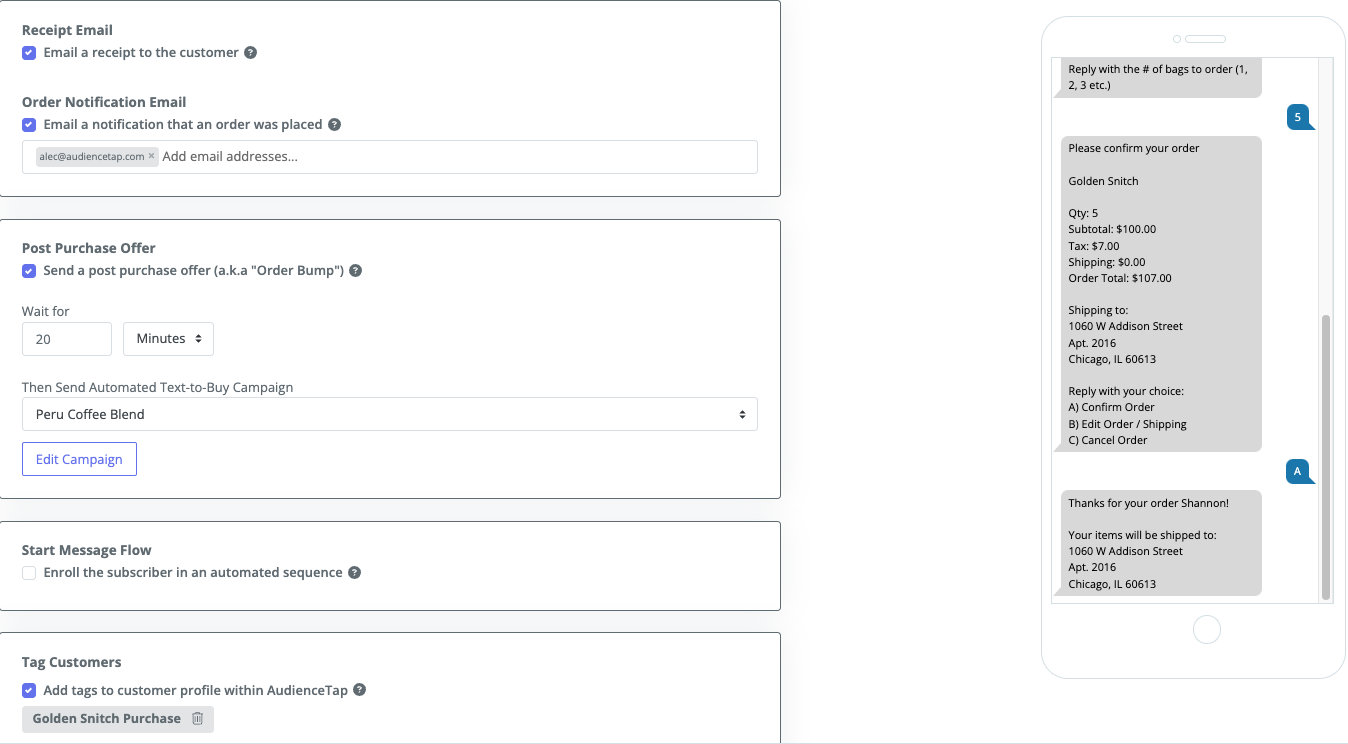
- Set quantity limits, if any, delivery method, and if you'd like to have a confirm order step for your customers to ensure shipping address is correct
- Craft an order complete message - using tags such as {{Subscriber.address}} and {{subscriber.first_name}}.
7. Manage Out-of-Stock Messages
- Customize or select an "Out of Stock" message.
- Optionally, set up a Spill Over Campaign .
8. Post-Purchase Communication
- Include email receipts and confirmation emails.
- Set up post-purchase offers where you can send an automated Text-to-Buy campaign later in the day or immediately after initial purchase of similar products your recipients may also liked to purchase.
- Tag customers to track who purchased the product for future campaigns.
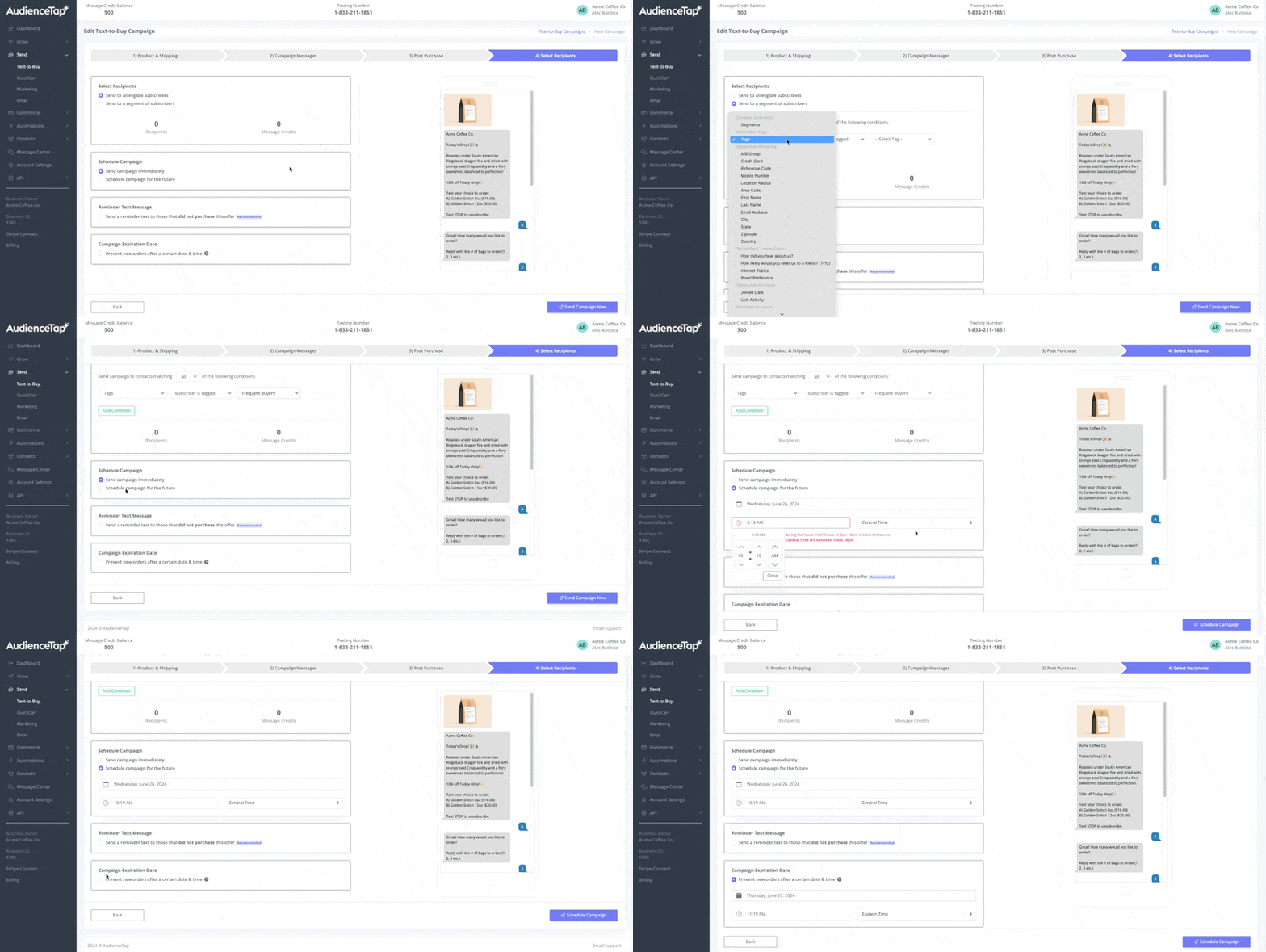
8. Select Recipients and Schedule
- Choose the recipients:
- Entire text list or a segment (e.g., Loyal Shoppers, Seasonal Buyers).
- Decide when to send the campaign:
- Send immediately or schedule for a later date.
- A reminder text is recommended for those who have no purchased right away
- Prevent new orders after a certain time and date by setting a campaign expiration date.