

Marketing Campaign Setup Guide
Last updated February 14, 2026
Navigate to the Send Section
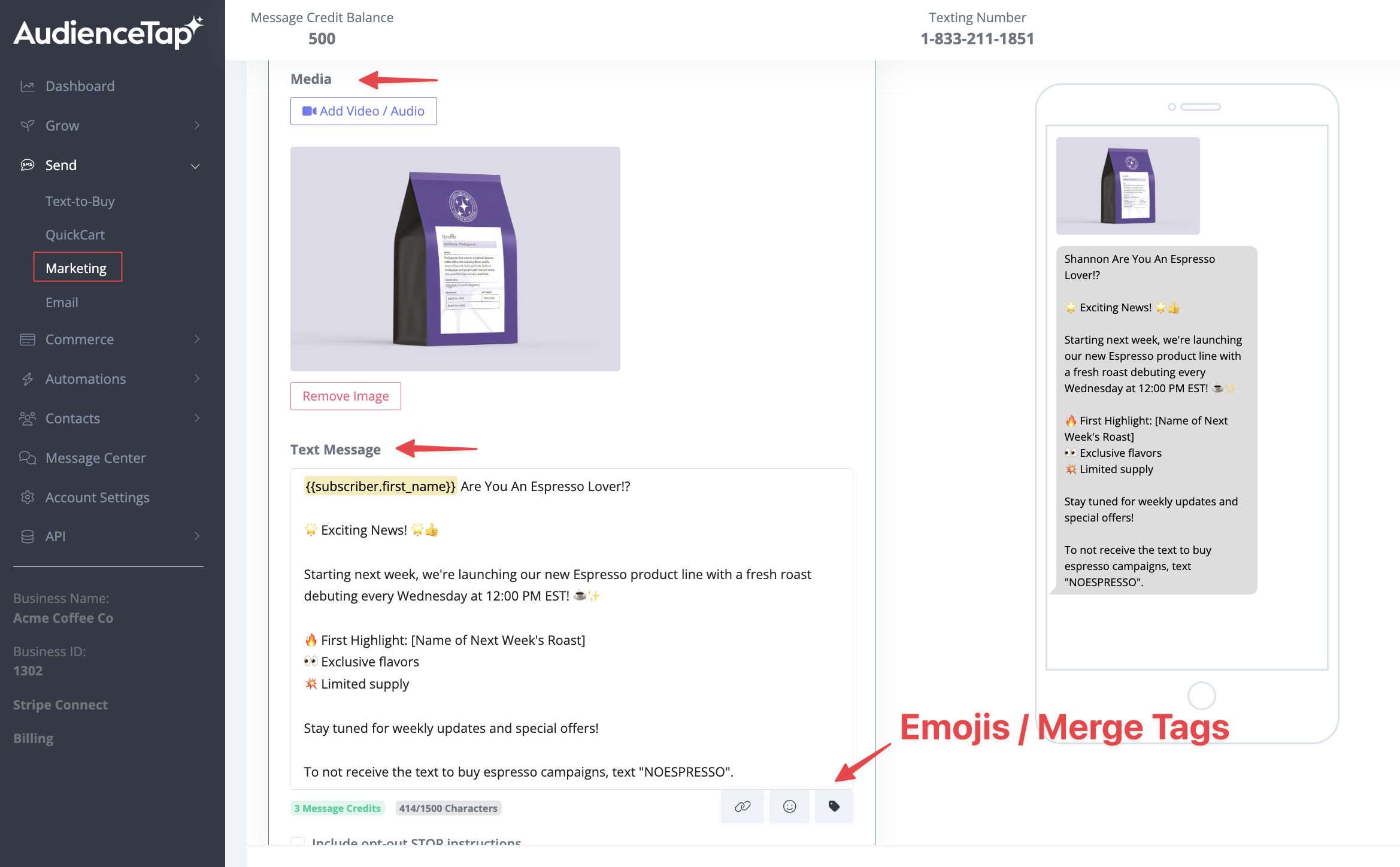
- Select "Marketing"
Create a New Marketing Campaign
- Campaign Title
- Choose a title for your reference to easily identify the campaign later.
- Add an Image or Video
- Optional, but encouraged for better engagement and a more appealing presentation.
- Add Your Contact Card
- Maintain brand awareness and ensure recipients know the message is from you.
- Create Compelling Text
- Clearly describe your message and objectives.
- Use merge tags for personalized messaging.
- Incorporate emojis to enhance appeal.
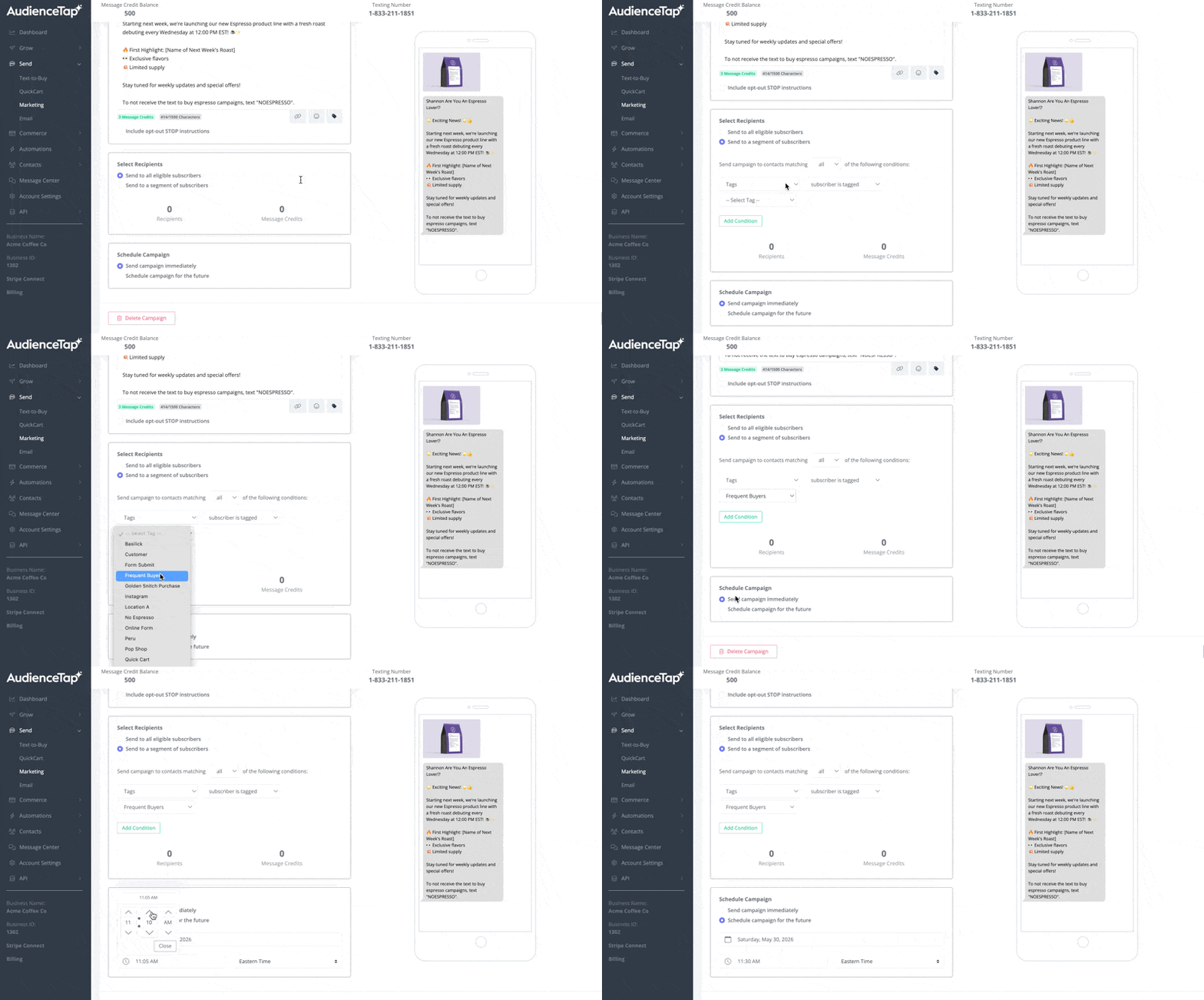
Select & Schedule Recipients
Choose to send the campaign to your full contact list or a specific subgroup by selecting the option to send the Marketing Campaign to a segment of your subscribers. Set a date and time for campaign launch. If the campaign is scheduled to be sent at a later date, you can return to edit the message before it sends.