


Online Form Setup Guide
Last updated February 14, 2026
Online Form Setup Guide
- Navigate to the Grow > Online Forms.
- Start by creating an Online form, which is ready out of the box.
- Customize the form by adding brand logos, colors, and images to maintain consistency with the merchant's branding.
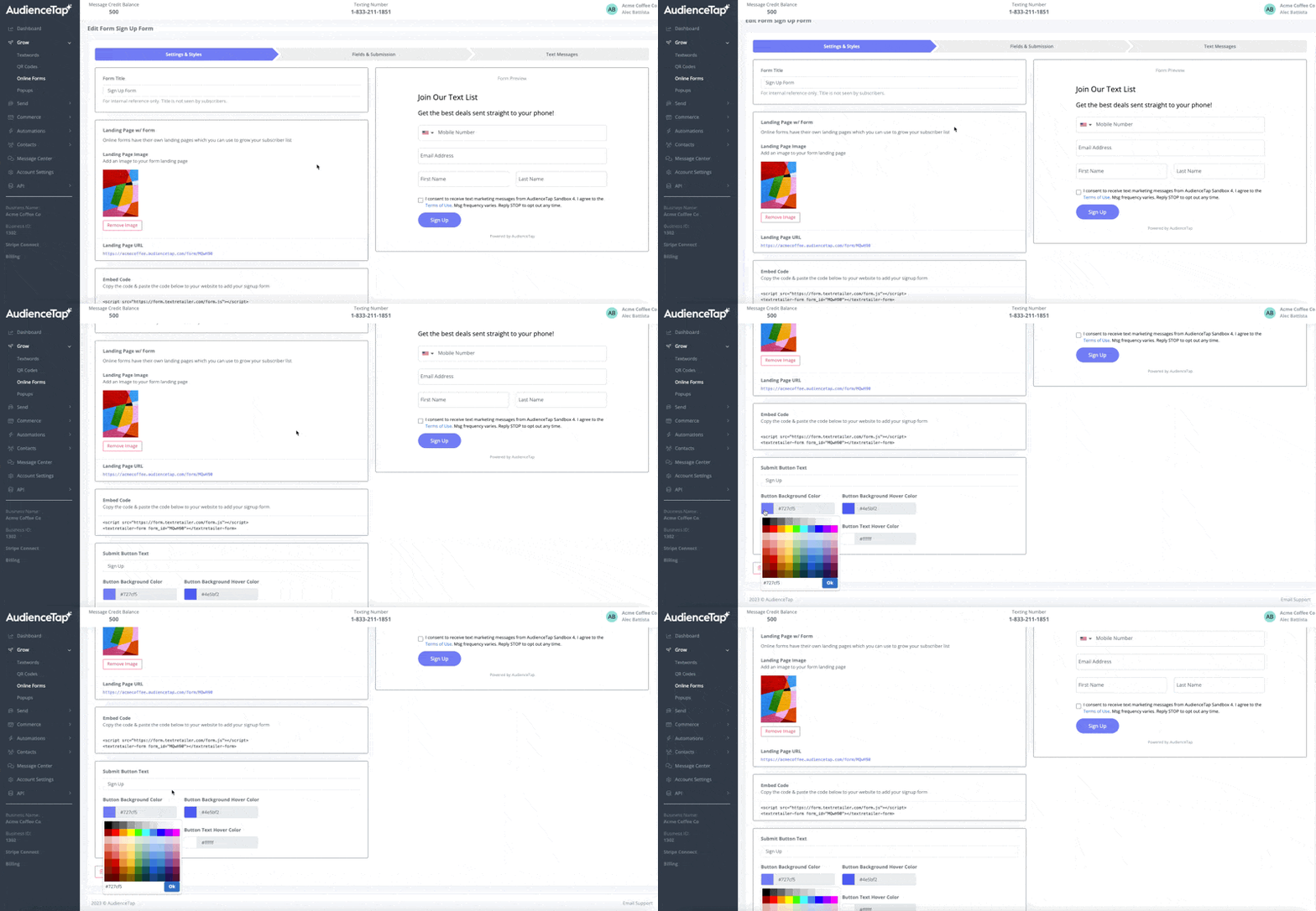
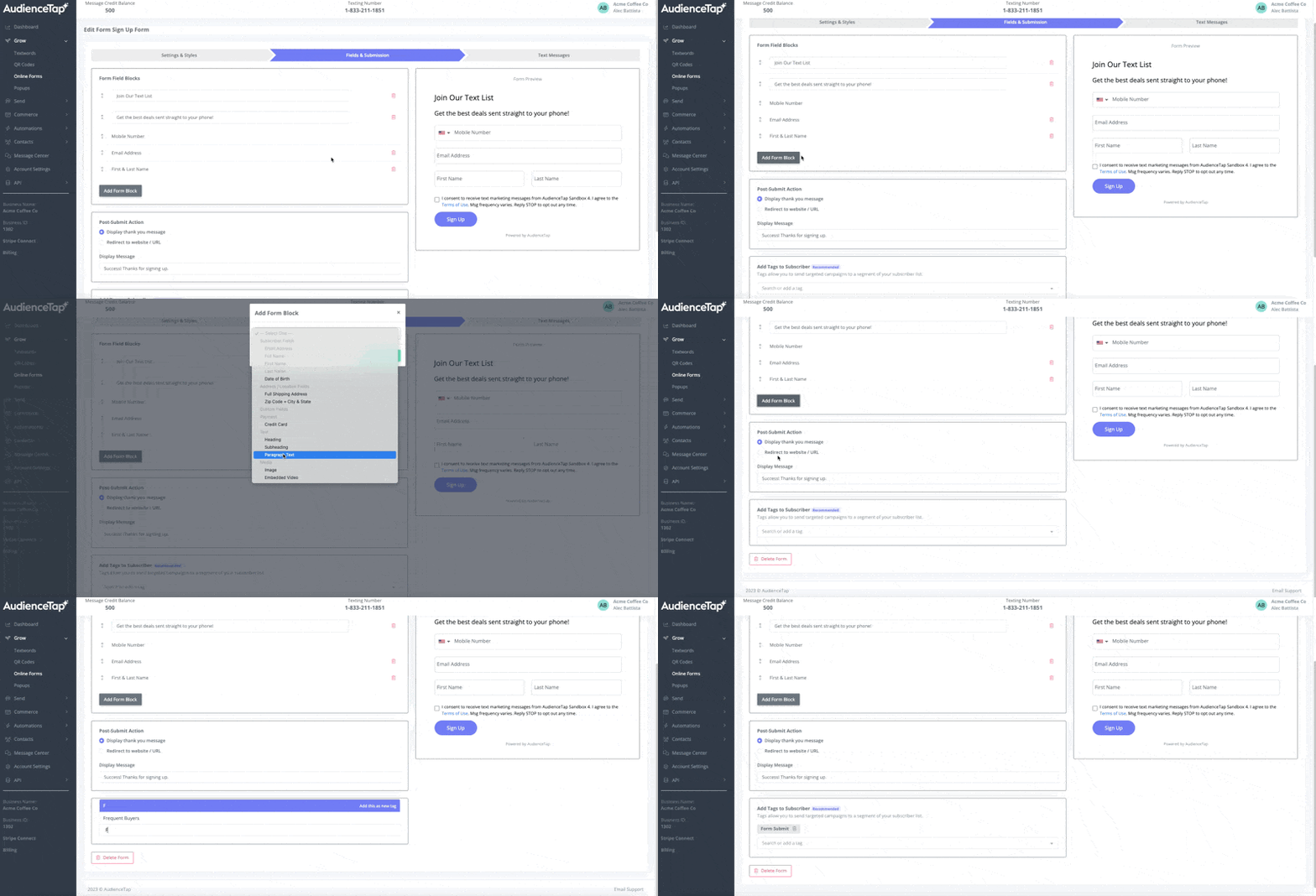
- Choose the necessary form fields such as email address, name, and optionally, date of birth or zip code for segmentation purposes.
- Enroll the new subscriber in message flows, like a Welcome Flow if you've already created this in the Automation > Message flow section. This can be done in the Message Flow Section. In the message flow, add one of your start triggers as the new Online Form you've just created.
- Add Tags to users who joined your list using this form
- Add your form link to emails, socials, etc.. to grow your list
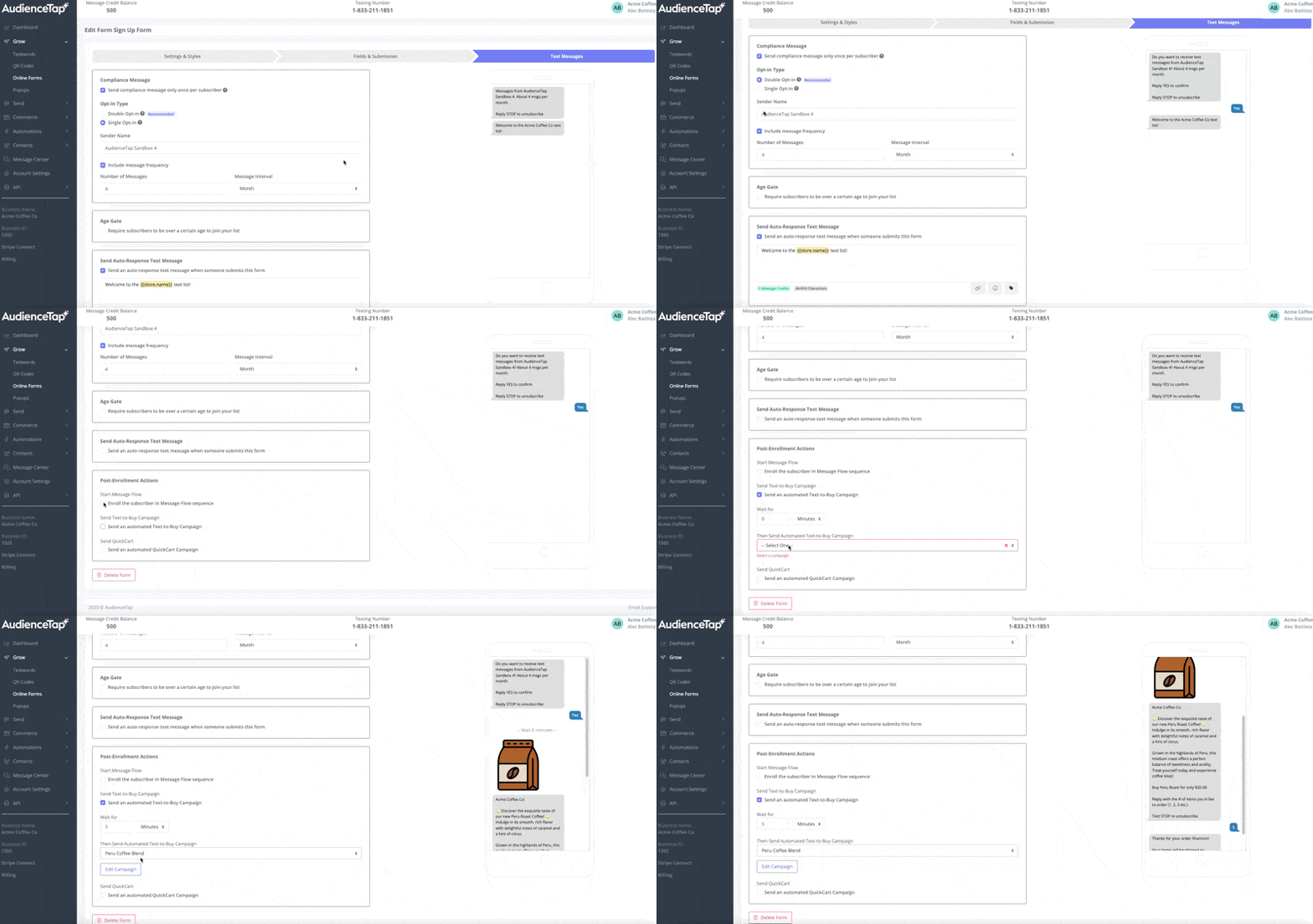
- Consider implementing a double opt-in process for compliance, where subscribers confirm their intentions via a text message.
- As soon as someone enters phone number in the form they will be sent a text message confirming their enrollment
- Set up automation triggers based on form submissions.
If you are using an embedded form. Embed the code into your desired location (home page or a dedicated section)